Inventory Order Creation and Management
Inventory orders allow you to request stock from your approved suppliers. Once an order is marked as “Received,” the system automatically synchronizes the quantities with your store’s active inventory.
Creating an Inventory Order
Inventory orders are location-specific. Ensure you have selected the correct store location before beginning the process.
-
From the main navigation bar, select Inventory.
-
On the Inventory dashboard, click Order inventory.
-
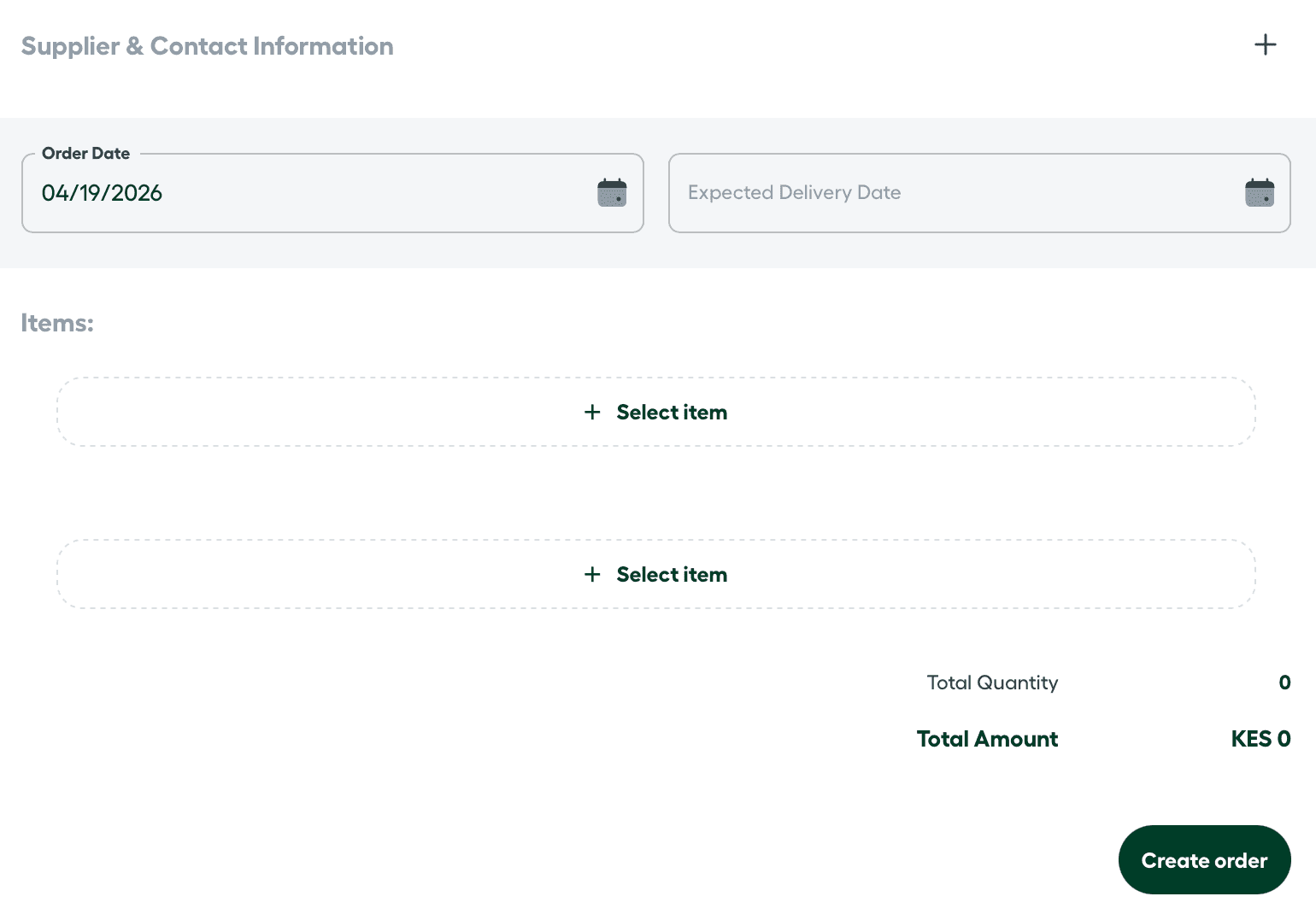
Fill in the required fields in the order form:
Section Description Supplier & Contact Select from your pre-configured supplier contacts. Learn more about setting up suppliers. Order Date Defaults to the current date; reflects when the request is issued. Expected Delivery The anticipated date the stock will arrive at your location. Items Search the catalog for products. A dropdown list will appear as you type. Learn about our Data Sources. Quantity The number of units required for the order. Unit Price The cost per individual unit from the supplier. -
Review the Total Summary at the bottom of the page to verify the total quantity and cost.
-
Click Create Order to finalize the request.
Managing and Receiving Orders
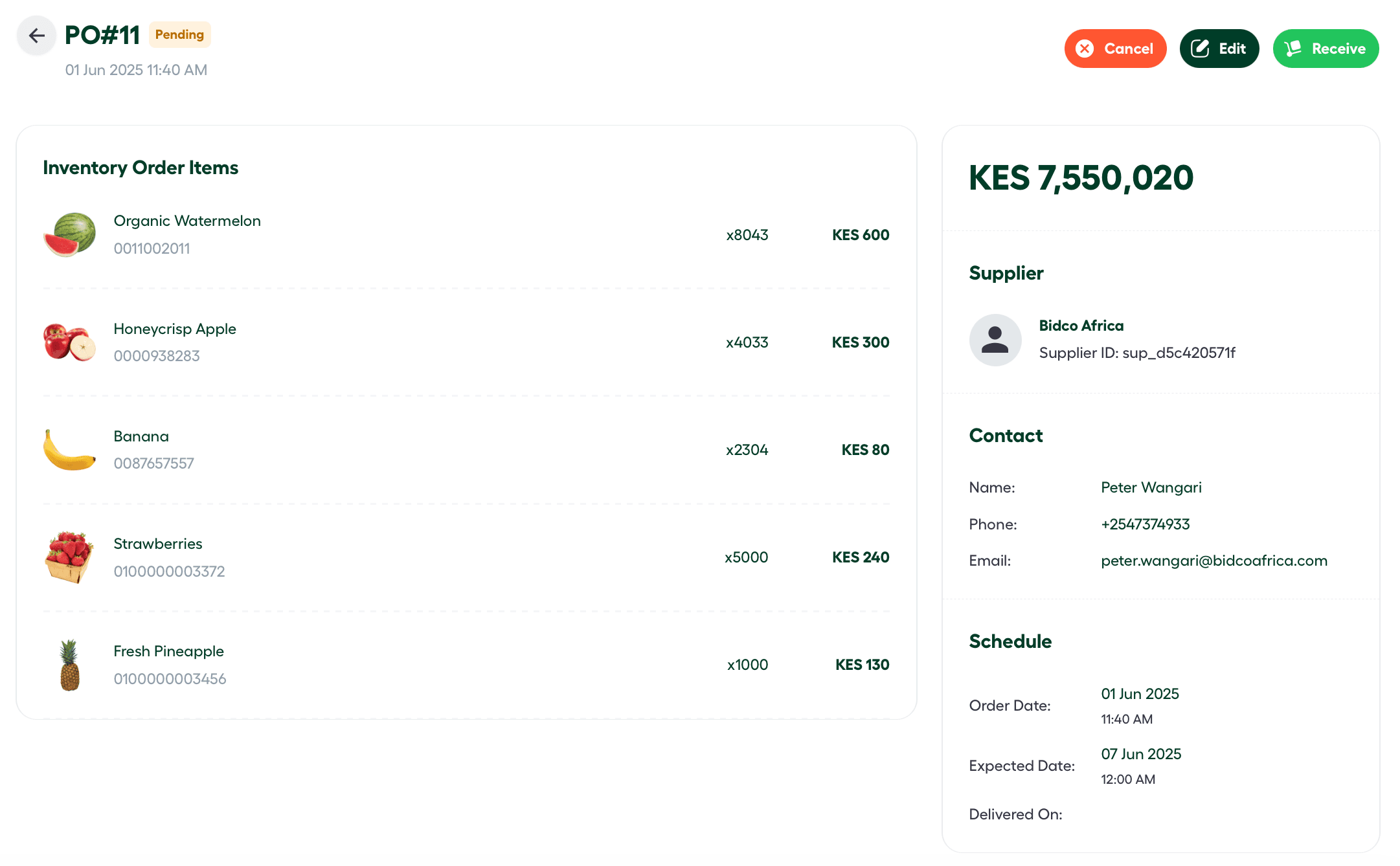
All new orders are assigned a Pending status until they are either fulfilled or canceled. You can track and manage these requests directly from the Inventory tab.
Order Actions
To manage an existing order, click the Actions (ellipsis) icon on the right side of the order entry and select View. From the Order Details page, the following options are available:
-
Cancel: Discontinue the request. This will remove the order from the pending list and prevent it from affecting incoming stock totals.
-
Edit: Modify the product list, increase/decrease quantities, or update delivery timelines before the order is fulfilled.
-
Receive: Click this when the physical shipment arrives. Marking an order as Received triggers an automatic sync, adding the items and quantities to your store location’s live inventory.